Interactive Apps — Interactive Sessions
The Interactive Apps section of Open OnDemand allows you to launch graphical or interactive applications directly on MCMeSU compute nodes, accessible through your browser.
Interactive sessions give you a real-time interface with the compute resources — ideal for data exploration, visualization, iterative development, or any workflow that requires immediate feedback.
Interactive Apps run as regular Slurm jobs under the hood. They consume resources from the same partitions as your batch jobs, and count against the same allocations.
How It Works
When you launch an Interactive App:
- Open OnDemand submits a Slurm job on your behalf to the requested partition
- The job starts on a compute node and launches the application
- OOD establishes a secure connection between your browser and the running application
- You interact with the application directly in your browser tab
- When you are done, terminating the session cancels the underlying Slurm job and frees the resources
Available Applications
| Application | Description |
|---|---|
| Jupyter Notebook | Interactive Python, R and Julia computing environment |
| RStudio Server | R environment for statistical computing and bioinformatics |
| Code Server | Visual Studio Code in the browser |
| Remote 3D Desktop | Visualize your results in 3D |
| Paraview | Post-processing visualization engine |
| Visual Molecular Dynamics (VMD) | Molecular visualization program for displaying, animating, and analyzing large biomolecular systems using 3-D graphics and built-in scripting |
Additional interactive applications may be added in the future. Contact the MCMeSU team if you need a specific application deployed on the portal.
Application Forms
Each Interactive App has its own resource request form. Fill it in carefully — you cannot change these values once the session has started.
- Jupyter Notebook
- RStudio Server
- Code Server (VS Code)
- Remote 3D Desktop
- Paraview
- Visual Molecular Dynamics (VMD)
| Field | Description |
|---|---|
| Extra Jupyter Args | Specifies the extra jupyter arguments |
| Partition | Target Slurm partition (bigm, std, thin or gpu) |
| Job's time | Wall time limit for the session (in hours, limited to 24 hours, contact MCMeSU team if you need more time) |
| Number of nodes | Nodes available to your notebook (limited to 1, contact MCMeSU team if you need more) |
| Number of CPUs | CPU cores available to your notebook |
| Memory (GB) | RAM available to your notebook |
| Number of GPUs | Number of GPUs requested (GPU partition only) |
| Be notified by email | Check this box to be notify by email when the session starts and ends |
| Field | Description |
|---|---|
| R version | R version for your session |
| Partition | Target Slurm partition (bigm, std, thin or gpu) |
| Job's time | Wall time limit for the session (in hours, limited to 24 hours, contact MCMeSU team if you need more time) |
| Number of nodes | Nodes available to your notebook (limited to 1, contact MCMeSU team if you need more) |
| Number of CPUs | CPU cores available to your R session |
| Memory (GB) | RAM available to your R session |
| Be notified by email | Check this box to be notify by email when the session starts and ends |
| Clear my RStudio profile | Check this box if RStudio keeps crashing at startup or you would like to reset your RStudio profile. This will remove RStudio sessions and cache from your home folder (.rstudio, .RData, etc.). |
| Field | Description |
|---|---|
| VS Code version | VS Code version for your session |
| Partition | Target Slurm partition (bigm, std, thin or gpu) |
| Job's time | Wall time limit for the session (in hours, limited to 24 hours, contact MCMeSU team if you need more time) |
| Number of nodes | Nodes available to your notebook (limited to 1, contact MCMeSU team if you need more) |
| Number of CPUs | CPU cores available to your VS Code session |
| Memory (GB) | RAM available to your VS Code session |
| Working Directory | Select your project directory (default is your HOME) |
| Be notified by email | Check this box to be notify by email when the session starts and ends |
| Field | Description |
|---|---|
| Session Type | 2 choices normal is 1 gpu, 16 cores and 256 GB, and large is 2 gpu, 32 cores and 512 GB |
| Job's time | Wall time limit for the session (in hours, limited to 24 hours, contact MCMeSU team if you need more time) |
| Be notified by email | Check this box to be notify by email when the session starts and ends |
| Field | Description |
|---|---|
| Paraview version | Paraview version for your session |
| Session Type | Only normal is available for now (1 gpu, 16 cores and 256 GB), contact us if you need more ressources |
| Job's time | Wall time limit for the session (in hours, limited to 24 hours, contact MCMeSU team if you need more time) |
| Be notified by email | Check this box to be notify by email when the session starts and ends |
| Field | Description |
|---|---|
| Session Type | Only normal is available for now (1 gpu, 16 cores and 256 GB), contact us if you need more ressources |
| Job's time | Wall time limit for the session (in hours, limited to 24 hours, contact MCMeSU team if you need more time) |
| Be notified by email | Check this box to be notify by email when the session starts and ends |
Launching an Interactive App

- Click Interactive Apps in the top navigation bar
- Select the application you want to launch from the dropdown menu
- Fill in the resource request form — this is specific to each application (see the dedicated page for details)
- Click Launch
- You are redirected to the My Interactive Sessions page, where your session will appear with a
Queuedstatus
My Interactive Sessions
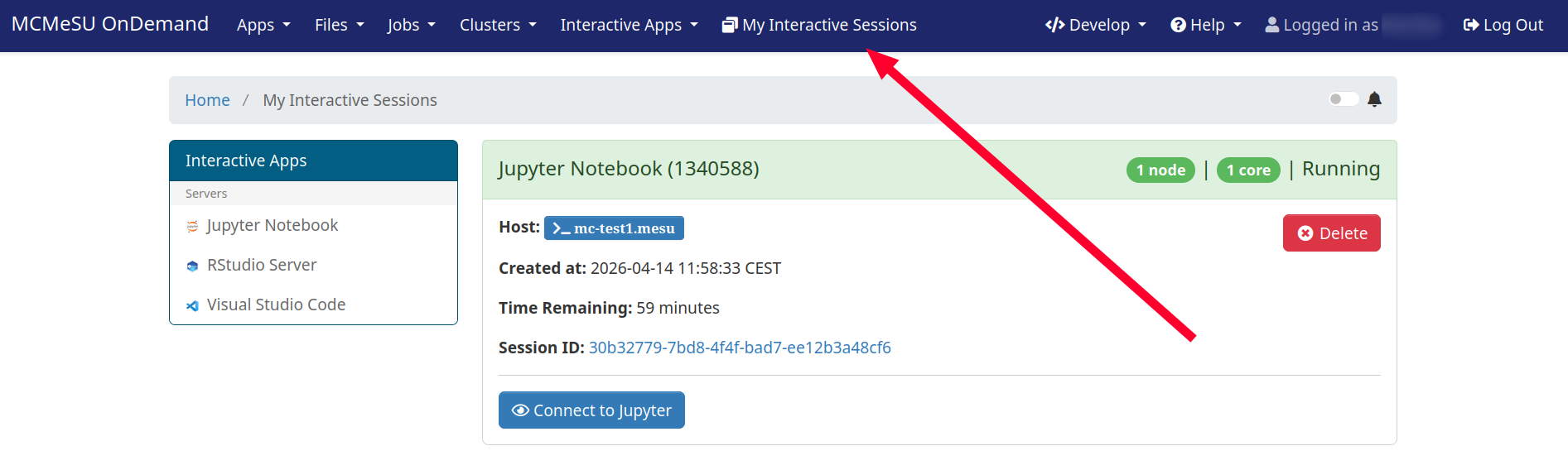
The My Interactive Sessions page is your control panel for all active and recently completed interactive sessions. It is accessible at any time via Interactive Apps → My Interactive Sessions in the navigation bar.
Session States
| State | Meaning |
|---|---|
| Queued | The underlying Slurm job is pending in the queue |
| Starting | The job has started and the application is initializing |
| Running | The session is ready — the Connect button is available |
| Completed | The session has ended (time limit reached or manually terminated) |
| Failed | The session encountered an error during startup |
Connecting to a Running Session
Once your session reaches the Running state:
- Click the Connect button on the session card
- The application opens in a new browser tab
If you accidentally close the browser tab, you can reconnect to a running session at any time from the My Interactive Sessions page — as long as the underlying Slurm job is still running.
Terminating a Session
To end an interactive session before its time limit:
- Go to My Interactive Sessions
- Click the Delete button on the session card
- Confirm the termination
This immediately cancels the Slurm job and releases the allocated resources. Always terminate your sessions when you are done — idle sessions continue to consume resources until their time limit is reached.
Do not rely on the time limit to clean up your sessions. An idle Jupyter Notebook left running for hours blocks compute resources that other users could be using.
Best Practices
- Request only what you need: overestimating CPUs, memory, or GPUs delays your session start and wastes shared resources.
- Always terminate idle sessions: if you are done working, click Delete — do not just close the browser tab.
- Save your work regularly: if the session times out or the node fails, unsaved work in the application will be lost.